

Automating data entry in web forms turns repetitive tasks into fast, accurate workflows. From browser extensions to advanced programming tools like Python and Puppeteer, automation saves time, reduces errors, and frees users for higher-value work. Key factors include data validation, error handling, monitoring, and strong security practices.
Understanding Web Form Automation

Web form autofilling is the practice of using a script to automatically fill out and submit forms on web pages. Instead of entering data manually into each field, by using automated systems, information from spreadsheet, database, or elsewhere is read, and forms are filled out automatically.
There are, in general, three important components of the process:
- Data source: Where your data resides (Excel files, databases, CSV files)
- Filler: The software you use to read your data and fill out forms
- Target types: The web pages that I need to insert the data into
Simple Form Fill Chrome, Firefox Browser Extensions
The easiest way to automate web form entry is through browser extensions designed for autofill. These integrate directly with browsers like Chrome or Firefox, automatically populating fields such as names, addresses, phone numbers, and emails. Popular extensions like Typeform or Form History Control can save multiple profiles for quick switching between datasets. For more advanced automation rules, check our post on how to automate browser data entry.
Popular Browser Extensions
Form Filler extensions such as Typeform and Form History Control are able to automatically fill out common fields like names, addresses and phone numbers. These are handy for standard forms where you need to enter (or paste) the same personal information again and again.
Embedded in browsers such as Chrome and Firefox are auto-fill tools that remember previously entered data so they can suggest it in future forms. Although elementary, these features do a great job of addressing casual automation needs.
Using custom form fillers, like Formilla or iMacros, you can then make more complex automation rules. You can define certain data patterns, and learn it how to identify different kinds of forms.
Setting Up Browser Extensions
It’s a similar process for most browser extensions:
- Add the extension from your browser’s web store
- How to Find Location Select a category and subcategory in the dropdown menus above and click on the form button to be taken to the location.
- Easily map fields by clicking form elements
- Import your source of data (normally a CSV or Excel file)
- Verify the automation with a couple of sample entries
Desktop Automation Software

For more complex data entry tasks, desktop automation software offers a much more powerful solution than basic browser extensions. These tools are capable of interacting not only with multiple web browsers but also with desktop applications, allowing users to automate entire workflows that span across different systems. This is particularly useful for businesses handling high volumes of data, multi-step processes, or enterprise applications that do not provide API access. Desktop automation can manage repetitive tasks such as transferring data between programs, processing forms, updating records, and even performing calculations or validations automatically. Because these tools can operate at the system level, they provide greater control, reliability, and flexibility than simpler automation methods, making it possible to create robust workflows that save time, reduce errors, and improve overall efficiency. Platforms like UiPath, Automation Anywhere, and Blue Prism have emerged as leaders in this space, offering advanced features for workflow orchestration, error handling, and integration with other enterprise systems, making desktop automation a key strategy for businesses looking to streamline complex operations.
Leading Desktop Automation Tools
- UiPath provides a complete RPA platform, with web form automation being an area of strength
- Automation Anywhere has very good integration capabilities with enterprise systems also
- Blue Prism specializes in enterprise-grade automations paired with strong security
Desktop automation is ideal for bigger processes. For broader coverage, check out cross-platform data entry automation.
Building Desktop Automation Workflows
What takes to make effective workflow automation is:
- Map Your Process
- Manage exceptions
- Test deeply
- Monitor success
Programming Solutions for Advanced Automation
For developers or those comfortable with coding, programming-based solutions offer unmatched flexibility and precision when automating web form entry. Unlike browser extensions or desktop tools, coding allows you to handle highly complex scenarios, such as dynamic forms, multi-step processes, and sites that rely heavily on JavaScript or AJAX for content rendering. With programming, you can customize workflows to match exactly how your data should be processed, implement conditional logic based on specific input, and integrate automation directly with databases, APIs, or other enterprise systems. This approach also makes it easier to scale automation across multiple websites or applications, handle exceptions programmatically, and create robust, maintainable scripts that adapt to changes in web forms over time. Ultimately, programming solutions give you full control over both the input and output, enabling highly efficient and reliable automation tailored to your exact needs.
Python and Selenium
Selenium can also be used to programmatically interact with a browser. It enables:
- Load data from Excel files or databases
- Navigate to web forms automatically
- Fill out multiple fields simultaneously
- Serve dynamic content and pages with Javascript or Ajax
- Submit forms and get confirmation message
- Process Results and Refresh Source Data
JavaScript and Puppeteer
Puppeteer is great for:
- Automating single-page applications (SPAs)
- Handling complex user interactions
- Working with modern JavaScript frameworks
- Taking screenshots for quality assurance
- Running automation in cloud environments
API Integration
Rather than automating populating a form, you can send data directly to the back-end systems of the applications. Advantages:
- Faster processing speeds
- Better error handling
- More reliable data transmission
- Easier maintenance and updates
- Better integration with existing systems
Choosing the Right Automation Method
The “optimal” way to automate data entry in web forms depends on several points:
- High-volume, high-frequency
- Technical resources
- The complexity of the form itself
- Integration requirements
- Security needs
A Method for Improving Web Form Automation

Data Quality and Validation
Ensuring the quality of your data is fundamental to successful web form automation. Poor or inconsistent data can cause errors, duplicate records, and downstream issues in reporting or business processes. To address this, create robust validation rules within your automation workflows. These rules can detect missing fields, flag malformed formats like incorrect phone numbers, email addresses, or postal codes, and identify duplicate entries before they are submitted. Some advanced automation tools also allow conditional validation, where the system checks data against external sources or internal databases for accuracy. Implementing these measures helps maintain clean, reliable data, reduces manual corrections, and ensures that automated processes consistently produce high-quality results.
Error Handling and Recovery
Even the most carefully designed automation can encounter unexpected issues—like network interruptions, browser crashes, or changes in the web form structure. Building solid error handling and recovery mechanisms into your workflows is essential. Automation scripts should include retry logic for temporary failures, fallback procedures when elements are not found, and clear logging to identify the source of the problem. Failover mechanisms—where alternative paths are defined for errors—can prevent your automation from halting entirely. By preparing for errors in advance, you reduce downtime, prevent incomplete data submissions, and maintain the overall reliability of your automation system.
Monitoring and Maintenance
Automation is not a “set it and forget it” process. Regular monitoring and maintenance are crucial to ensure that workflows continue running smoothly. Monitoring tools can alert you when a script fails, when submissions are incomplete, or when unexpected changes occur in the target web forms. Routine checkups help identify subtle issues before they escalate into bigger problems, such as incorrect data propagation across systems or slowdowns due to outdated scripts. By scheduling periodic reviews and performance audits, you can continuously refine and optimize your automation, ensuring consistent efficiency and accuracy over time.
Security Considerations
Data security should always be a top priority when automating web form submissions, especially if sensitive or personal information is involved. Use secure connections (HTTPS) for all web interactions, encrypt any stored credentials, and avoid hardcoding passwords into scripts. Follow your organization’s data handling and privacy policies to ensure compliance with regulations like GDPR or CCPA. Additionally, create dedicated automation accounts with limited permissions to reduce risk exposure in case of a security breach. Implementing these security measures not only protects sensitive information but also safeguards your automation processes and the systems they interact with, building trust and reliability across your operations.
Common Challenges and Solutions
- Dynamic Content: Deal with these situations by explicit waits and element recognition
- CAPTCHA: Consider API integration or semi-automated processes
- Rate limits: Introduce reasonable delays
- Form changes: Develop strong detection and keep code updated
Measuring Automation Success
Monitor important metrics:
- Time savings
- Error minimization
- Volume of Documents
- Cost
- User satisfaction
Taking Your First Steps
Begin with these practical steps:
- Figure out your most repetitive highest-volume of data tasks
- Begin with small stuff like browser extensions or simple desktop tools
- Document your processes thoroughly
- Test your dynamically created dataset with small datasets
- Choose long-term tools with robust value
If you’re unsure where to start, here’s a practical resource: How to automate data entry in a web form.
Web Form Automation to Turn Mindless Data Entry into Reliable Efficient Work
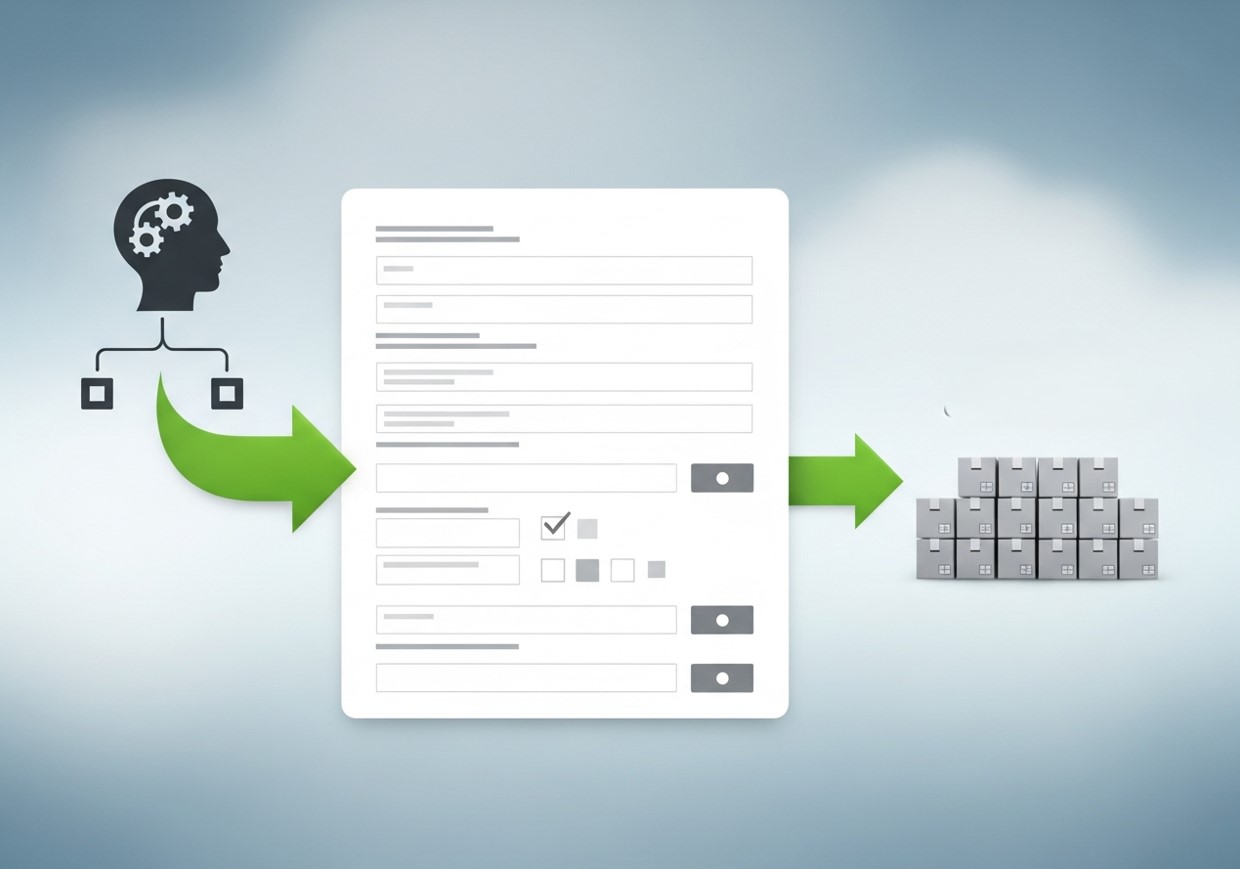
Whether that’s browser extensions, desktop automation tools, or whipping up your own programming code, it is important to match your methodology to how you are sorting and what level of computer skill you are comfortable with. Begin with simple automation and then create increasingly complex systems as you learn more.
Automating data entry into web forms can improve efficiency and reduce errors—especially in performance-driven channels like affiliate marketing, where fast, accurate data collection supports better analytics and campaign optimization.
Frequently Asked Questions (FAQs)
What is web form automation?
Web form automation is the process of using tools, scripts, or bots to automatically fill and submit fields in online forms. Instead of manually typing each entry, automation reads data from a source (Excel, CSV, database) and inputs it into the form automatically.
Do I need coding skills to automate form filling?
No. Browser extensions and desktop automation tools allow beginners to automate simple to moderate tasks without writing code. However, advanced automation—like handling dynamic pages—may require programming tools such as Python (Selenium) or JavaScript (Puppeteer).
Which tools are best for automating web form data entry?
Popular options include:
- Browser extensions: Autofill, Fillr, Form Filler, iMacros
- Desktop automation tools: UiPath, Automation Anywhere, Blue Prism
- Coding solutions: Python + Selenium, JavaScript + Puppeteer
The best tool depends on task complexity and your technical skill level.
Can web form automation handle dynamic websites?
Yes, but you’ll typically need advanced tools like Selenium or Puppeteer. These can interact with JavaScript, AJAX, pop-ups, and dynamically loaded elements more reliably than simple browser extensions.
Is API integration better than form automation?
Yes—when available, APIs are faster, more secure, and more stable. But many websites don’t offer APIs, which is why browser automation remains common.
Can automation handle forms with CAPTCHAs?
Yes, but CAPTCHAs are designed to prevent automated submissions. Some workflows integrate semi-automated human verification for these cases, or use APIs from CAPTCHA-solving services, although care must be taken to comply with the website’s terms of service.
How do I maintain automation scripts when websites change?
Dynamic websites require flexible scripts. Use unique identifiers for elements, modular workflow design, and frequent testing. Desktop automation platforms often include monitoring features that alert you when a form changes.
Is automation suitable for small-scale data entry?
Absolutely. Browser extensions or lightweight desktop tools are perfect for small tasks. You don’t need advanced programming unless you’re dealing with high-volume, complex, or multi-step forms.
How much time can automation save?
Time savings vary based on volume, but automation can reduce hours of repetitive work to minutes, freeing employees for creative or strategic tasks. High-volume processes can see efficiency gains of 70–90%.
Can automation reduce errors in data entry?
Yes. By removing manual typing, automation reduces human errors such as typos, missed fields, or inconsistent formatting. Combining automation with validation checks further ensures data accuracy.
Are there legal considerations for automating form submissions?
Yes. Always comply with website terms of service, privacy policies, and data protection regulations. Some sites may restrict automated submissions, so verify permissions before deploying workflows.